Jellyfin
Let’s talk about some awesome selfhosting because it’s having a trend now. This post will be more like a TIL than a prose.
Navigate to "How it started" How it started
In the past couple of months, I’ve got more and more interested in home servers. My initial interest was towards backing up my family media without using any proprietary garbage™ software (thanks tony). Immich flawlessly filled the gap. I packed up all of our photos and transferred all of them to my little home server.
One day in the morning, I was listening to The Home Server / Synology Show from Syntax.fm. Between the stories of awesome home goodies, I heard about a software called Jellyfin that I’d never heard before. So I began with the usual round: traditional searching & documentation reading. How is it working? How can it be hosted? What clients does it support? Does it have a good community?
Luckily all lights were green. They even have support for my old Samsung TV. Back in the day, I was - indeed - playing with Tizen applications. It’s an obscure framework that sits below regular Javascript apps. However, my knowledge has since faded.
Navigate to "Installation" Installation
Fortunately, the good people of the Jellyfin community have a guide on how to develop.
According to that, we need the Tizen Studio with the TV SDK. Unfortunately,
only Ubuntu Linux is supported … and I’m on Arch btw™. Ok, I downloaded both the
GUI and the CLI installer.
The GUI installer couldn’t be started because it was missing system libgtk-2.0.
So I had to compile and install GTK 2.0 (AUR).
Upon successfully installing GTK2, I was able to start the GUI installer
(and the IDE itself) but it exclusively uses apt to find its dependencies.
So I started working on it with the CLI installer instead.
# Lists all available packages => OK
./package-manager-cli.bin show-pkgs

# Install the TV extension => NOK missing system packages
./package-manager-cli.bin install TV-SAMSUNG-Extension-Tools

# Install Certificate extension => NOK missing system packages
./package-manager-cli.bin install cert-add-on --accept-license
Problematic dependencies:
- TV extension
- Certificate Manager.
As you can see above, I couldn’t install dependencies because
the Package Manager needed apt. Well, I was devastated. I hunted
down all libraries and installed them with pacman but it was not enough.
Then I found distrobox🎸. It’s a cool project that lets you run any Linux distribution within the terminal. It’s essentially running containers with podman and mounts the host as a volume. So I jumped on it and installed Ubuntu on Arch.
# Install distrobox
sudo pacman -S distrobox podman
# Create Ubuntu container
distrobox create --name tizen-dev --image ubuntu:20.04
# Enter the container
distrobox enter tizen-dev
I could install the Samsung dependencies within the container 🎉. The whole SDK pack could be started now:
- GUI installer ✅
- Emulator ✅
- Certificate Manager ✅
- Certificate profile creation ✅
And in theory, we are done 🏆. Unless…
Navigate to "Build" Build
Next, clone the jellyfin-web client & create a production build. It had strange SASS errors but they magically disappeared.
cd jellyfin-web
npm ci --no-audit
USE_SYSTEM_FONTS=1 npm run build:production
Then clone the jellyfin-tizen client and create a build.
cd jellyfin-tizen
JELLYFIN_WEB_DIR=../jellyfin-web/dist npm ci --no-audit
Now we’re supposed to be ready to build a client archive (.wgt).
# Build a Tizen web project => OK
tizen build-web -e ".*" -e gulpfile.babel.js -e README.md -e "node_modules/*" -e "package*.json" -e "yarn.lock"
# Create an application package for Tizen. => NOK
tizen package -t wgt -o . -- .buildResult
The last command was just hanging for eternity without any output or message. Ok, this was frustrating. No matter how I tried … it was just not responding.
In one of my desperate moments, I figured out that it relates to the Certificate Manager. Because it was hanging similarly after I set up any profile. But I couldn’t proceed…
The problem was related to the keyring master password. The system prompt didn’t show up. After fixing my Window Manager this was the result:
The active profile is used for signing. If you want to sign with other profile, please use '--sign' option.
Author certficate: ~/tizen-studio-data/keystore/author/NAME.p12
Distributor1 certificate : ~/tizen-studio/tools/certificate-generator/certificates/distributor/tizen-distributor-signer-new.p12
Excludes File Pattern: {.manifest.tmp, .delta.lst}
Ignore File: ~/Projects/jellyfin-tizen/.buildResult/.manifest.tmp
Package File Location: ~/Projects/jellyfin-tizen/Jellyfin.wgt
Navigate to "Deploy" Deploy
After solving a couple of networking issues, I proceeded with the following:
# Get the TV IP
sdb devices
# Connect to the TV
sdb connect $SAMSUNG_TV_IP
# Deploy on TV
tizen install -n Jellyfin.wgt -t $SAMSUNG_TV_NAME
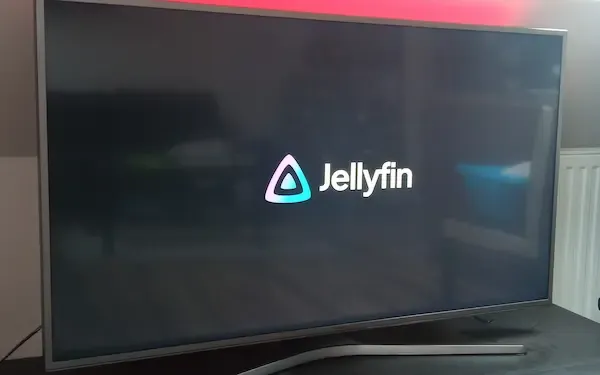
So I could finally deploy my Jellyfin client on the TV. And magically 🪄 it just works.
Navigate to "A Community to my rescue" A Community to my rescue
A few hours later, I found Tim’s Github project and blog post. This awesome tool literally needs one command from start to finish:
docker run --rm georift/install-jellyfin-tizen $SAMSUNG_TV_IPTim’s project also points to another cool place where Jellyfin.wgt
archives are built daily 😅.